Complete Guide: Shopify Advertising Integration
Connect e-commerce ads to major platforms, synchronize feeds and pixels, ensure GDPR compliance, and optimize conversions through automation.
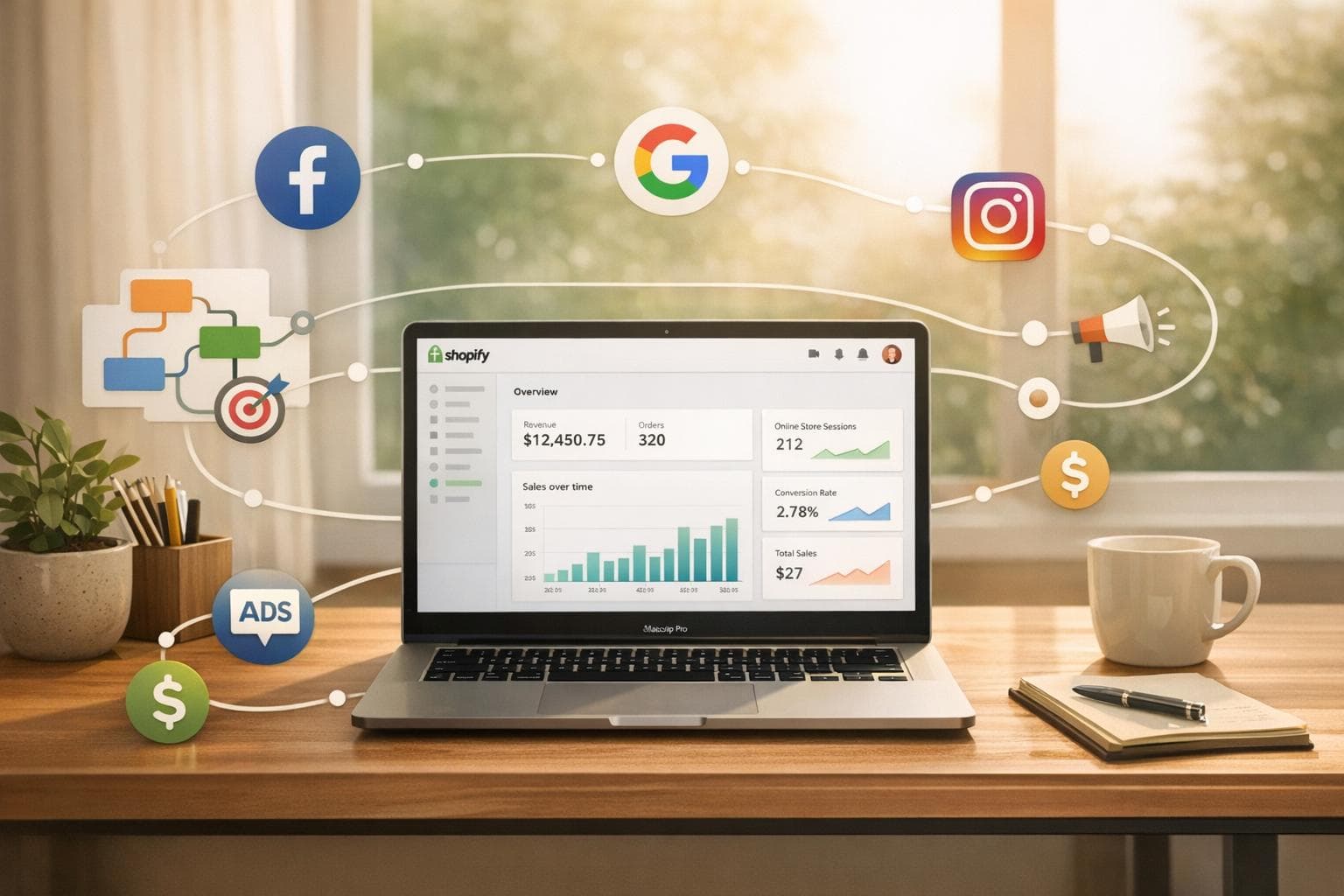
The Shopify advertising integration allows you to connect your online store to major advertising platforms like Google, Meta, Microsoft Ads, and TikTok. By automatically synchronizing product catalogs, tracking pixels, and conversion APIs, you optimize your advertising campaigns while reducing acquisition costs. Here are the key points:
- Data Synchronization: Automatically update your prices, stock, and descriptions across all platforms to avoid errors.
- Performance Improvement: Use AI-based tools to adjust bids, optimize visuals, and better target your audiences.
- GDPR Compliance: Ensure compliance with French regulations with consent banners and tools like Google Consent Mode.
- Centralized Management: Manage your campaigns across multiple channels from a single interface with tools like Feedcast.
Concrete Example: In December 2025, the French brand "My Little Bee" maintained its advertising performance while complying with GDPR thanks to solutions like Axeptio.
With the right configurations and tools, you can maximize your advertising conversions and increase your return on investment.
Preparing Your Shopify Store for Advertising Integrations

Checklist Before Integration
Before connecting your advertising accounts, ensure your Shopify store is properly configured. This includes verifying your domain with your registrar and activating Shopify Payments to access advanced tools like Shopify Audiences [2]. These technical steps ensure smooth synchronization with advertising platforms. Also, consider displaying your prices in euros (€) and using the metric system (kilograms, centimeters) for your shipping zones to comply with French standards.
Optimize your product pages by using high-resolution images, writing clear and precise descriptions, and placing prominent call-to-action buttons [9]. AI-based tools, like those offered by Feedcast, can transform average-quality visuals into professional photos and generate optimized descriptions. They also synchronize your inventory in real-time to avoid promoting out-of-stock products [6]. Such optimization can directly impact your advertising conversion rates.
To strengthen your local presence in France, create a Google Business profile. This makes your business easily identifiable on Google Maps and in local searches, while enhancing your credibility [9]. Once this setup is complete, you can proceed to install tracking pixels and conversion tracking.
Installing Tracking Pixels and Conversion Tracking
The Meta Pixel is a key element to integrate into your site's code. It tracks visitor activity, associates it with their social media profiles, and enables campaigns like abandoned cart retargeting [5]. This pixel notably tracks the "PURCHASE" event, which is often the only event supported for certain types of automated campaigns [7].
Ensure your store is also connected to a complete catalog including titles, descriptions, prices, and images. Verify that time zones and currencies are aligned between Shopify and your advertising accounts to ensure accurate reporting and deliver advanced formats like Shops Ads [7].
Campaigns using Shopify Audiences retargeting lists have shown impressive results, with up to twice as many orders for each euro invested compared to other strategies [2].
"Facebook advertising is one of those things where you need to be ready to spend consistently over time" - Ezra Firestone, founder of Smart Marketer [5]
These steps are also essential to prepare your store to meet GDPR requirements, as explained below.
Configuring GDPR-Compliant Tracking
To comply with GDPR in France, activate Shopify's native cookie banner. Go to Settings > Customer Privacy > Cookie banner. Enable it, select the relevant regions (France/EU), and customize its appearance to match your branding. This banner informs visitors about data tracking and allows them to give explicit consent.
However, Shopify does not natively offer Google Consent Mode v2, which is crucial for merchants using Google ads. This mode automatically adjusts the behavior of Google tags (Analytics and Ads) based on user consent [10]. To address this absence, install a certified app like Consentmo or Axeptio (starting at €9/month), to ensure tracking pixels only trigger after users' explicit authorization [11].
For example, in December 2025, the French brand "My Little Bee," specializing in reusable beeswax wraps, successfully integrated Google Consent Mode V2 thanks to Axeptio. This allowed them to maintain their advertising performance while complying with French regulations [10].
Finally, if you work with influencers or create sponsored content, the CNIL requires full transparency. Use hashtags like #ad, #sponsored, or #paid to clearly indicate the nature of these collaborations [8]. Also, set up procedures to respond to data access or deletion requests (right to be forgotten), in accordance with GDPR requirements.
How to Run META Ads for Shopify (FULL Setup & Tutorial)
Connecting Shopify with Advertising Platforms
::: @figure 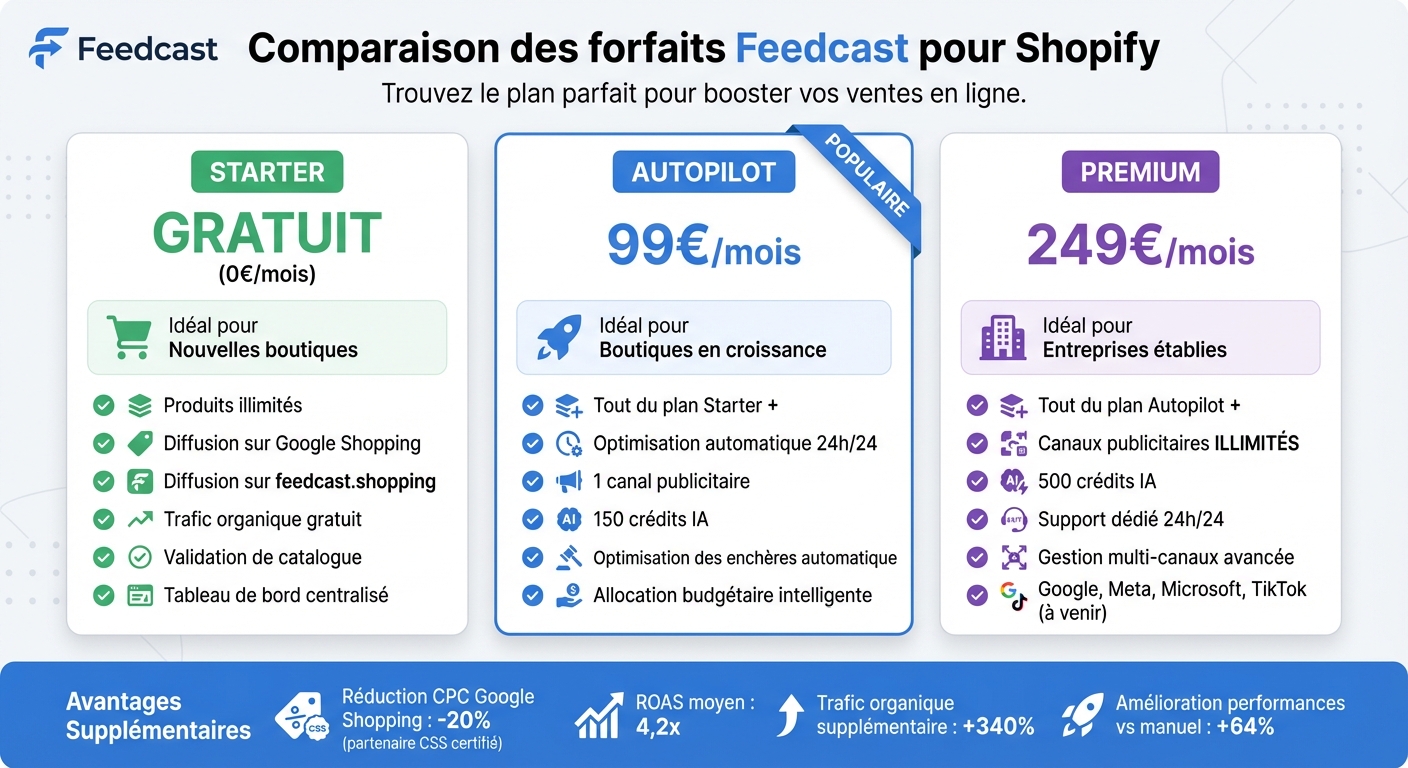 {Feedcast pricing plans comparison for Shopify}
Once your store is configured and GDPR-compliant, it's time to connect your advertising platforms to centralize their management and maximize your marketing efforts.
Setting Up Google & YouTube Ads
The official "Google & YouTube" app available on the Shopify App Store is the recommended way to connect your store. This free integration automatically synchronizes your products, business information, and marketing data [12][13]. For everything to work correctly, your Google account must have admin rights on Google Ads and Google Merchant Center (GMC) [13].
When setting up GMC, prepare a phone number to receive a six-digit verification code confirming your account ownership [13]. Also, consider enabling automatic import of shipping settings, which synchronizes your rates between Shopify and Google Merchant Center [13]. With this synchronization, your products will appear on Google Shopping, with the possibility for some stores to benefit from free ads [12][13].
To go further, using a certified CSS (Comparison Shopping Service) partner like Feedcast can offer you 20% off Google Shopping CPC bids [6][1]. Additionally, Feedcast's AI-driven optimization can generate up to 340% more organic traffic, by freely displaying your products on Google Shopping and specialized marketplaces [6][1].
Setting Up Facebook & Instagram Ads
Once your store is connected to Google & YouTube, move on to Facebook & Instagram to complete your advertising strategy. Install the "Facebook and Instagram by Meta" app from the Shopify App Store, then go to Shopify Admin > Settings > Apps and sales channels [14][16]. Ensure your personal Facebook account has "Full Control" permissions on the Meta business wallet and associated Facebook Page [14]. Additionally, your store must be on at least the Shopify Basic plan and not password-protected [15].
When configuring data sharing, select the "Maximum" level to enable the conversions API. This feature transmits data directly from Shopify's server to Meta, bypassing browser-imposed limitations and improving tracking accuracy [15]. Also, ensure your products require shipping, have a return policy, and have an assigned Google product category [17].
"69% of online shoppers who use Meta platforms weekly make purchases after seeing personalized content on Facebook or Instagram" [16].
Using Feedcast for Multichannel Advertising Management
While native Google and Meta integrations are useful, managing multiple advertising channels can quickly become complicated. Feedcast simplifies this process by centralizing the management of your campaigns on Google, Meta, and Microsoft Advertising through a unified dashboard. An integration with TikTok is also planned soon [1][3].
Feedcast's AI Studio tool enhances your visuals by removing backgrounds and increasing resolution, which can directly improve click-through rates [1][3]. More than 3,000 e-commerce brands already use Feedcast, collectively generating over 6 million clicks and €16 million in sales [3].
Feedcast offers several plans tailored to your needs:
- Free Starter Plan: Broadcast an unlimited number of products on Google Shopping and feedcast.shopping to generate organic traffic without initial costs [1][18].
- Autopilot Plan (€99/month): Automates bid optimization and budget allocation 24/7, with one advertising channel and 150 AI credits [1][3].
- Premium Plan (€249/month): Offers unlimited advertising channels, 500 AI credits, and dedicated support available at all times [1][3].
| Connection Method | Product Feed Synchronization | Conversion Tracking | Audience Synchronization |
|---|---|---|---|
| Google & YouTube App | Yes | Yes | Yes |
| Google Ads Data Manager | No | No | Yes |
| Feedcast Integration | Yes (AI-enhanced) | Yes | Yes |
Resolving Common Integration Issues
Even with careful setup, integration errors can occur. Here's how to handle the most common issues to ensure successful advertising campaigns.
Resolving Product Feed Errors
Synchronization discrepancies are a common source of malfunctions. For instance, manual changes to prices or stock may not update in real-time. The result: ads for out-of-stock or mispriced products, wasting your advertising budget [1][4].
Poor-quality visuals can lead to ad rejections or poor performance. With Feedcast's AI Studio, visuals are automatically enhanced: background removal and resolution increase [1][4]. Additionally, missing or incomplete attributes—such as GTIN codes, product categories, or detailed descriptions—can also cause ad refusals. Feedcast uses AI to automatically enrich titles and descriptions, ensuring better compliance [4].
Feedcast's product validation tool is an effective solution to avoid account suspensions. This tool identifies errors before they affect your ads. In 2024, Claudie Pierlot increased its conversion rate by 36% on Meta Shopping Ads thanks to this approach [4].
Now let's address pixel and tracking issues.
Correcting Pixel and Tracking Issues
For Meta Shops Ads, only the PURCHASE conversion event is supported. If you use other types of events, tracking will fail [7]. Ensure your omnichannel_object configuration correctly associates the pixel_id with the required custom_event_type [7].
Also, verify that the pixel triggers events with up-to-date identifiers, that the is_onsite_enabled option is enabled (true), and that the shop_status is set to ACTIVE. With Feedcast's unified dashboard, you can quickly compare ROAS, CPC, and spending on Google, Meta, and Bing, making it easy to detect these inconsistencies [6]. Note that some features, like Meta's onsite payment, are currently only available in the United States [7].
Let's now look at account connection issues.
Resolving Account Connection Issues
To connect Meta Ads Manager, you'll need a business Facebook Page and a business Instagram account [5]. Shops Ads also require catalog_management authorization and a valid ad account [7].
Connection errors are often due to a missing or invalid payment method. Before attempting any connection, verify this information in the "Ad Settings" and "Ad Account Settings" sections [5]. Regarding Shopify Audiences, this feature is reserved for Shopify Plus merchants using Shopify Payments in the United States or Canada [2].
If you still encounter issues with Meta Shops Ads, contact technical support by providing your ad account and app ID. Mention "[Shops Ads]" in your ticket title [7]. Note that the Feedcast Premium plan (€249/month) includes dedicated support available 24/7 [6].
Maintaining and Improving Your Advertising Integrations
Regularly monitoring your advertising integrations is essential to ensure their proper functioning. Without maintenance, errors can easily accumulate, leading to unnecessary costs and reduced performance. Additionally, these checks prepare your integrations for any changes to your store.
Regular Maintenance Tasks
Weekly product feed monitoring: Check the dashboard weekly to verify your product feeds' synchronization. This helps quickly detect any interruptions or anomalies.
Monthly price and promotion verification: Ensure prices, stock, and product descriptions are synchronized in real-time. This minimizes discrepancies that could lead to ad rejections or damage customer trust [6].
Managing Shopify API limits: Monitor your usage via the "X-Shopify-Shop-Api-Call-Limit" header. Private apps can make up to 40 requests per second, while public OAuth apps are limited to 2 requests per second. Caching is an effective solution to reduce unnecessary calls and meet these thresholds [19].
Securing Integrations During Store Changes
To protect your data during changes to your store, some precautions are necessary. Before making changes to your Shopify theme or installing a new app, verify that your tracking pixels and API connections remain active. Synchronization logs (Google Shopping, Meta, TikTok) are
Yohann B.